

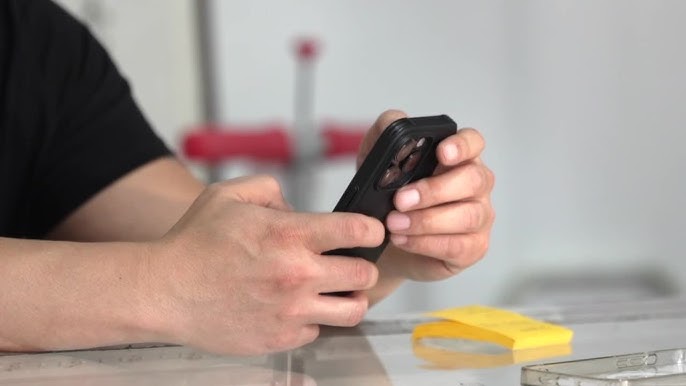
A smartphone may feel warm while charging, recording video, using navigation, or running a demanding game. Some warmth is expected because the processor, Battery, display, and wireless radios generate heat. Overheating becomes a concern when the phone is uncomfortable to hold, displays a temperature warning, shuts down unexpectedly, or remains hot during light use.
Excessive heat can Reduce performance, damage the battery, interrupt charging, and shorten the device’s lifespan. The safest response is to remove the source of heat and allow the phone to cool gradually.
Move the Phone Away From Direct Sunlight
Sunlight can raise a phone’s temperature quickly, especially when it is left on a dashboard, outdoor table, windowsill, or car seat.
Move the device into a shaded and ventilated area. Turn the screen off and avoid using it until the temperature drops.
Never leave a smartphone inside a parked vehicle during warm weather. The interior temperature can rise far above the outdoor temperature.
Covering the phone with clothing or placing it inside a closed bag may protect it from direct sunlight, but it can also trap existing heat. Choose a shaded area with airflow instead.
Stop Demanding Applications
Games, video editors, augmented-reality apps, camera recording, and navigation tools place a heavy load on the processor.
Close demanding applications and give the device time to cool. Avoid immediately opening another high-performance app.
If overheating happens whenever one particular application is running, update or reinstall it. Poorly optimized software can keep the processor working at high capacity.
Helpful smartphone performance resources can explain how demanding applications, background activity, and processor load contribute to excess heat.
Remove the Case Temporarily
Protective cases reduce damage from drops, but thick materials may trap heat. Remove the case while the phone is cooling or charging.
Do not stop using a protective case permanently unless the manufacturer recommends it. Instead, consider a lighter and better-ventilated design if overheating happens frequently.
Check whether the case interferes with the charging connector or wireless charging alignment. Poor alignment may cause extra heat.
Lower the Screen Brightness
Maximum brightness requires additional power and can increase heat, particularly outdoors.
Reduce brightness manually or enable automatic adjustment. Turn off the screen when the phone is not being used.
High refresh-rate settings can also increase power consumption. Switching from a higher refresh rate to a standard setting may reduce heat during long sessions.
Animated wallpapers, constant video playback, and prolonged camera use keep the display active and add to the thermal load.
Turn Off Unused Connections
Mobile data, Wi-Fi, Bluetooth, hotspot, GPS, and nearby-device scanning all require energy. The effect becomes greater when several features operate together.
Turn off services you do not need. Stop the personal hotspot after connected devices finish using it.
Weak cellular signals can create extra heat because the phone works harder to maintain a connection. Connect to stable Wi-Fi or activate airplane mode when no mobile service is available.
When adjusting network features, follow secure wireless connection habits to avoid replacing a heat problem with a privacy or account-security risk.
Check Background Battery Usage
A phone that becomes hot while sitting unused may have an application working continuously in the background.
Open the battery settings and review recent usage. Look for an unfamiliar app or a service showing activity far beyond the time you used it.
Force close the application, restrict its background permission, and install any available update. Remove it if the problem continues.
Social media, backup services, cloud photo uploads, navigation tools, and poorly designed games can create persistent activity.
A newly installed application is a strong suspect when overheating begins suddenly.
Restart the Phone
Restarting closes processes that may be stuck and clears temporary software errors.
Turn the phone off completely and leave it off for several minutes if it is unusually hot. Once it has cooled, switch it back on and monitor the temperature during ordinary use.
A restart is especially useful when the phone heats up after an application crash, system update, or failed download.
If the device becomes hot immediately after restarting, avoid demanding tasks and inspect battery usage.
Update the Operating System
System updates may include fixes for battery drain, network instability, background processes, and thermal management.
Connect to trusted Wi-Fi and make sure the phone has enough battery power before updating. Allow the device to cool first because installation itself may create heat.
The phone may remain warm for a while after a major update as it reorganizes files, updates applications, and rebuilds search indexes. This temporary activity should gradually stop.
Persistent overheating for several days after an update should be investigated.
Practical mobile troubleshooting methods can help users track whether heat began after a software change, application installation, charging issue, or network problem.
Use the Correct Charger and Cable
A damaged, incompatible, or low-quality charger can produce excessive heat.
Use charging accessories from the phone manufacturer or a reputable certified brand. Replace cables with exposed wires, bent connectors, or unstable charging behavior.
Fast charging naturally generates more heat than slower charging. Use it when speed matters, but consider a standard charger for overnight or desk charging.
Wireless charging may also create additional heat. Make sure the phone is centered correctly on the charging pad and remove objects between the phone and charger.
Stop charging if the phone becomes extremely hot.
Avoid Using the Phone Heavily While Charging
Gaming, video streaming, navigation, and video calls generate heat. Charging creates additional heat at the same time.
Allow the phone to charge without demanding use whenever possible. Light tasks such as reading a message are less concerning, but long gaming sessions while fast charging can raise the temperature considerably.
Place the device on a hard, open surface. Do not charge it under a pillow, blanket, couch cushion, or pile of clothing.
Soft materials trap heat and may create a serious safety concern.
Keep the Phone Out of the Refrigerator or Freezer
A refrigerator or freezer may seem like a fast cooling solution, but it can damage the device.
Sudden temperature changes may create condensation inside the phone. Moisture can affect the battery, screen, charging system, and internal circuits.
Allow the device to cool naturally at room temperature. A fan can improve airflow, but avoid placing the phone directly against ice or frozen objects.
Safe cooling is gradual, not immediate.
Check for Malware or Suspicious Software
Malicious or poorly designed applications may run hidden processes, display advertisements, collect data, or use network resources continuously.
Remove applications downloaded from unofficial sources. Review permissions and uninstall software that requests access unrelated to its purpose.
A basic utility should not need constant location access, microphone control, contact information, and unrestricted background operation.
Trusted smartphone security practices can help users identify risky applications without relying on aggressive or misleading security tools.
Clean the Charging Port
Dirt or pocket lint can prevent a secure charging connection. An unstable connection may repeatedly start and stop charging, creating heat around the port.
Turn the phone off before inspecting it. Use good lighting and follow the manufacturer’s cleaning guidance.
Do not pour liquid into the port or push sharp metal objects inside. The internal contacts are delicate and easy to damage.
A loose, burned, or visibly damaged charging port should be inspected by a qualified technician.
Reduce Camera and Video Demands
Recording high-resolution video creates significant processor, storage, display, and camera activity.
Use a lower video resolution when maximum quality is unnecessary. Record shorter clips and allow the phone to rest between long sessions.
Direct sunlight makes outdoor recording more demanding because the phone is exposed to environmental heat while the screen operates at high brightness.
Remove the case temporarily and keep the phone shaded between recordings.
Inspect the Battery for Warning Signs
A failing battery may generate unusual heat even during normal use.
Look for screen separation, a raised back cover, swelling, chemical odor, rapid battery drain, or unexpected shutdowns.
Stop using and charging the phone if the battery appears swollen. Do not press the casing back into place or puncture the battery.
Take the device to a reputable repair provider. Damaged lithium-ion batteries require careful handling and should not be placed in ordinary household trash.
Reset the Phone Only After Backing Up Data
If software problems continue after updating apps, restricting background activity, and restarting, a settings reset may help.
A complete factory reset should be the final software step because it removes personal data. Back up photos, contacts, messages, documents, passwords, and authentication information first.
After the reset, reinstall applications gradually. Observe whether the phone heats up after adding a particular app.
This process can identify software-related overheating that was difficult to trace.
Know When to Seek Professional Help
Occasional warmth during demanding use is normal. Professional inspection is appropriate when the phone overheats repeatedly during simple tasks, shuts down, will not charge normally, or shows physical battery changes.
The problem may involve the battery, charging port, processor, internal sensor, or damaged circuit.
Avoid continuing to use a severely overheating phone. Repeated exposure to high temperatures can worsen internal damage and create a safety risk.
To stop a phone from overheating, move it away from heat, close demanding applications, reduce brightness, remove the case, stop charging, and allow it to cool naturally. Then review battery usage, applications, software updates, and charging accessories. Early action can protect the battery, preserve performance, and prevent a manageable temperature problem from becoming permanent damage.