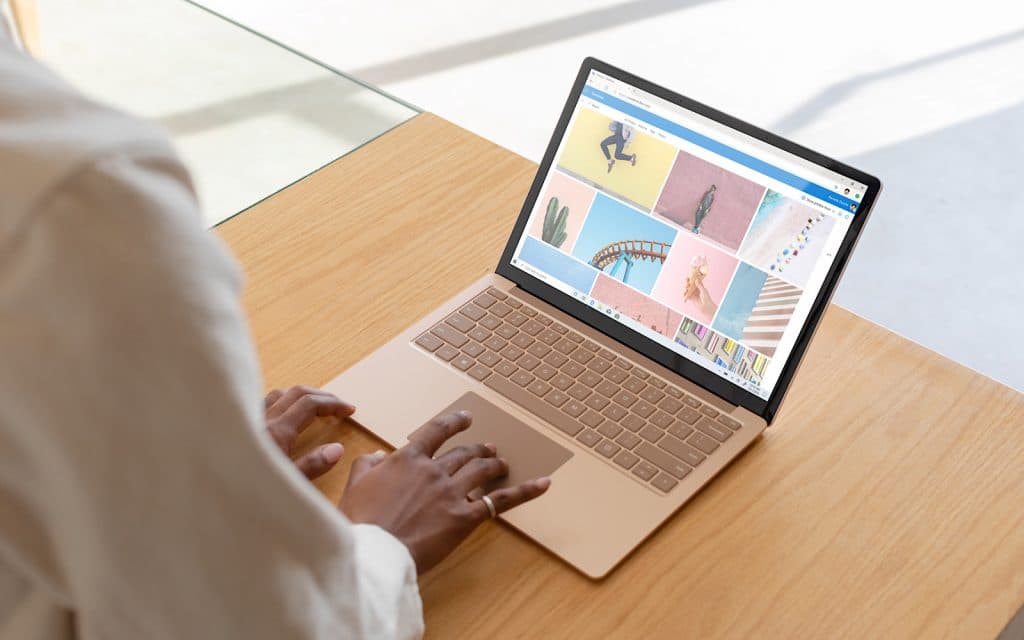


A reliable laptop is one of the most important educational tools for college students in the United States. Classes may require online research, video meetings, digital textbooks, presentations, specialized software, cloud storage, and group projects.
When a laptop becomes slow, many students assume replacement is the only option. However, selected upgrades and maintenance steps can improve performance at a lower cost.
The right decision depends on the laptop model, age, condition, academic requirements, and upgrade possibilities. Some devices allow memory and storage replacements, while others have important parts permanently attached.
Students should compare upgrade costs with the expected remaining life of the computer before spending money.
Identify the Actual Performance Problem
Before purchasing new hardware, students should determine why the laptop feels slow.
A computer may have limited memory, nearly full storage, outdated software, excessive background applications, overheating, or unwanted programs.
Open the system performance tools to see how memory, storage, and processor resources are being used.
If storage is almost full, deleting unnecessary files may improve performance without any hardware changes.
If the laptop slows mainly when many applications or browser tabs are open, additional memory may help.
If startup and file access are consistently slow, the storage drive may be the main issue.
Accurate diagnosis prevents spending money on an upgrade that does not address the problem.
Check Whether the Laptop Can Be Upgraded
Laptop designs vary widely. Some models include removable panels and replaceable parts. Others are sealed or use components that cannot be changed.
Search the exact model number before purchasing memory, storage, batteries, or other parts.
Manufacturer documentation may explain supported capacities and installation requirements.
Students should also check warranty conditions. Opening certain devices may affect coverage.
Professional installation may be appropriate when internal parts are difficult to access.
People who enjoy practical home and personal technology projects should still follow model-specific instructions because laptop components can be damaged by incorrect handling.
Upgrade Memory for Better Multitasking
Memory, commonly called RAM, helps the computer manage active applications.
Students who keep many browser tabs open while using video meetings, documents, spreadsheets, and research tools may benefit from additional memory.
A laptop with limited RAM may slow down when applications compete for available resources.
Before buying memory, confirm the required type, speed, number of available slots, and maximum supported capacity.
Not every laptop allows RAM upgrades. Some thin devices have memory permanently attached.
Additional memory can improve multitasking, but it will not necessarily solve problems caused by an old processor or failing storage drive.
Replace a Slow Hard Drive With Solid-State Storage
Older laptops may use traditional mechanical hard drives. Replacing one with a solid-state drive can improve startup speed, application loading, file access, and overall responsiveness.
Solid-state drives have no moving internal parts and are generally faster and more resistant to physical movement.
Students should confirm the required size and connection type before purchasing.
Important files must be backed up before replacing a drive.
The operating system can be installed fresh, or the existing drive may be copied using approved software.
A storage upgrade often provides one of the most noticeable improvements for an older laptop that is otherwise functioning well.
Free Storage Before Buying New Hardware
A nearly full drive can reduce performance and make updates difficult.
Students should review downloads, videos, duplicate files, unused applications, temporary data, and old class materials.
Large projects can be moved to approved cloud storage or an external drive.
Important academic work should exist in more than one location. A laptop failure should not destroy the only copy of a major assignment.
Automatic cloud synchronization is convenient, but students should confirm that important folders are included.
Guidance from trusted home and technology specialists can also help students create organized study spaces with appropriate storage and backup equipment.
Improve Battery Performance
Laptop batteries lose capacity over time. A device that once lasted eight hours may eventually require charging after only a few hours.
Before replacing the battery, review power settings and battery health information.
Lowering screen brightness, closing unused applications, and reducing unnecessary background activity may extend operating time.
If battery health is poor, replacement may restore portability.
Use compatible batteries from dependable suppliers. Low-quality replacements may provide poor performance or create safety concerns.
Some modern laptops require professional battery installation because the component is located inside the case.
Clean the Cooling System
Dust can collect around vents and cooling equipment. Restricted airflow may cause higher temperatures, louder fans, reduced performance, and unexpected shutdowns.
Keep vents uncovered during use. Soft beds, blankets, and couches can block airflow.
Students should use laptops on firm surfaces or suitable stands.
External cleaning can remove visible dust, but internal cleaning should follow manufacturer guidance.
Overheating may also be caused by failing fans, dried thermal material, or demanding software.
A cooling problem should be addressed before purchasing performance upgrades because excessive heat may reduce the benefit of new parts.
Update Software and Drivers
Outdated software can create performance, compatibility, and security problems.
Install operating system updates and restart the laptop when required.
Application updates may improve stability and repair known issues.
Drivers help the operating system communicate with hardware such as graphics, WiFi, audio, and touchpads.
Students should use manufacturer or operating system update tools rather than downloading unknown driver applications.
Remove software that is no longer needed. Too many startup applications can increase boot time and use memory.
Students incorporating computers into modern home study and improvement plans should also keep routers, printers, and connected devices updated.
Use External Accessories When Internal Upgrades Are Limited
A laptop does not always need internal changes to become more useful.
An external monitor can improve productivity during research, writing, programming, design, and spreadsheet work.
A separate keyboard and mouse may create a more comfortable study setup.
External storage can provide space for videos, photographs, backups, and large projects.
USB hubs or docking stations can add ports for accessories.
A laptop stand may raise the screen to a more comfortable height, although a separate keyboard is usually needed for good posture.
Students should prioritize accessories that support actual coursework rather than purchasing equipment only because it looks attractive.
Consider Academic Software Requirements
Different degree programs have different technology needs.
Engineering, architecture, video production, animation, data science, and design courses may require powerful processors, dedicated graphics, large memory capacity, or specialized software.
Writing, business, education, and general studies programs may operate well on more modest equipment.
Students should review department recommendations before paying for upgrades.
Software requirements can change during later courses. A laptop that handles first-year assignments may struggle with advanced work.
College computer laboratories may provide access to expensive specialized software, reducing the need to own high-performance equipment.
Improve WiFi Performance
A slow online experience may not be caused by the laptop itself.
Test internet performance near the router and compare it with other devices.
Older laptops may support outdated wireless technology. In some cases, a compatible external WiFi adapter can improve performance.
Restarting the router and updating network drivers may solve temporary problems.
For online classes, a wired connection may provide more consistent video quality.
Students should avoid making major laptop changes before confirming whether the internet connection is the actual cause.
Protect the Laptop From Damage
Physical protection can extend the useful life of a computer.
Use a padded case when carrying the laptop between classes, libraries, housing, and workplaces.
Avoid placing drinks beside the keyboard.
Do not carry the device by the screen or place heavy books on top of it.
Keep charging cables away from walking areas to prevent falls.
Students should also record the serial number and activate device-location features when available.
A strong password and automatic screen lock help protect personal and academic information.
Create a Reliable Backup System
Hardware upgrades carry some risk, and unexpected failures can occur at any time.
Back up important files before installing new memory, storage, batteries, or operating system updates.
Students may use cloud storage, external drives, or both.
Major assignments should never exist only on the laptop.
Confirm that backups can be opened. A backup system is useful only when the information can be recovered.
Files should be organized by course and semester so older work can be located easily.
Compare Upgrade Costs With Replacement Value
Not every laptop is worth upgrading.
A computer with a damaged screen, weak battery, outdated processor, broken ports, and limited upgrade support may require more money than its remaining value justifies.
Add the cost of parts, installation, accessories, and possible repairs.
Compare that amount with the price of a dependable replacement that meets academic requirements.
An upgrade may be worthwhile when the laptop is in good condition and one component creates a clear limitation.
Students exploring practical home study and technology ideas should focus on long-term usefulness rather than unnecessary equipment purchases.
Make the Upgrade Decision Carefully
Start with free improvements. Remove unused applications, organize storage, install updates, reduce startup programs, and check for overheating.
Then identify whether memory, storage, battery condition, or another component is limiting performance.
Confirm compatibility before ordering any part.
Back up important information and follow reliable installation guidance.
Students should avoid purchasing upgrades based only on general recommendations because every laptop model has different limits.
A well-planned memory or storage upgrade can extend the useful life of a computer and reduce education costs. However, replacement may be the better choice when several major parts are outdated or damaged.
The best laptop is not always the newest or most expensive model. It is the computer that runs required academic software reliably, protects important work, supports daily study habits, and remains dependable throughout the semester.
Careful maintenance and targeted upgrades can help American college students get more value from existing technology while keeping limited education budgets focused on the tools that provide the greatest academic benefit.